System overview
The Vittor people recognition and space management system connects personnel records, managed spaces, on-site enrollment, recognition devices, and display screens. Administrators maintain records, operators capture face information, devices perform recognition, and duty staff view results in the console and on the display. This guide uses a campus accommodation deployment as its complete example; the product framing can extend to campuses, residences, buildings and other managed sites, subject to the fields, protocols and delivery plan for each project.
Components and responsibilities
| Component | Main responsibilities | User entry point |
|---|---|---|
| Admin console and central service | Manage sites, buildings/areas, rooms/spaces, people and device relationships; handle synchronization and callbacks | The browser-based admin console |
| Enrollment terminal | Look up residents, read identity cards, capture live photos, submit personnel information | Registration and system settings on the Android terminal |
| Face recognition device | Receive personnel, perform recognition, report heartbeats and captures | The physical device and its manufacturer's configuration interface |
| Display | Receive recognition events, save recent records, show personnel and connection status | Android TV, set-top box, or display terminal |
This website and guide provide product information and operating instructions. Business records are maintained in the management system delivered for the site.
How the data connects
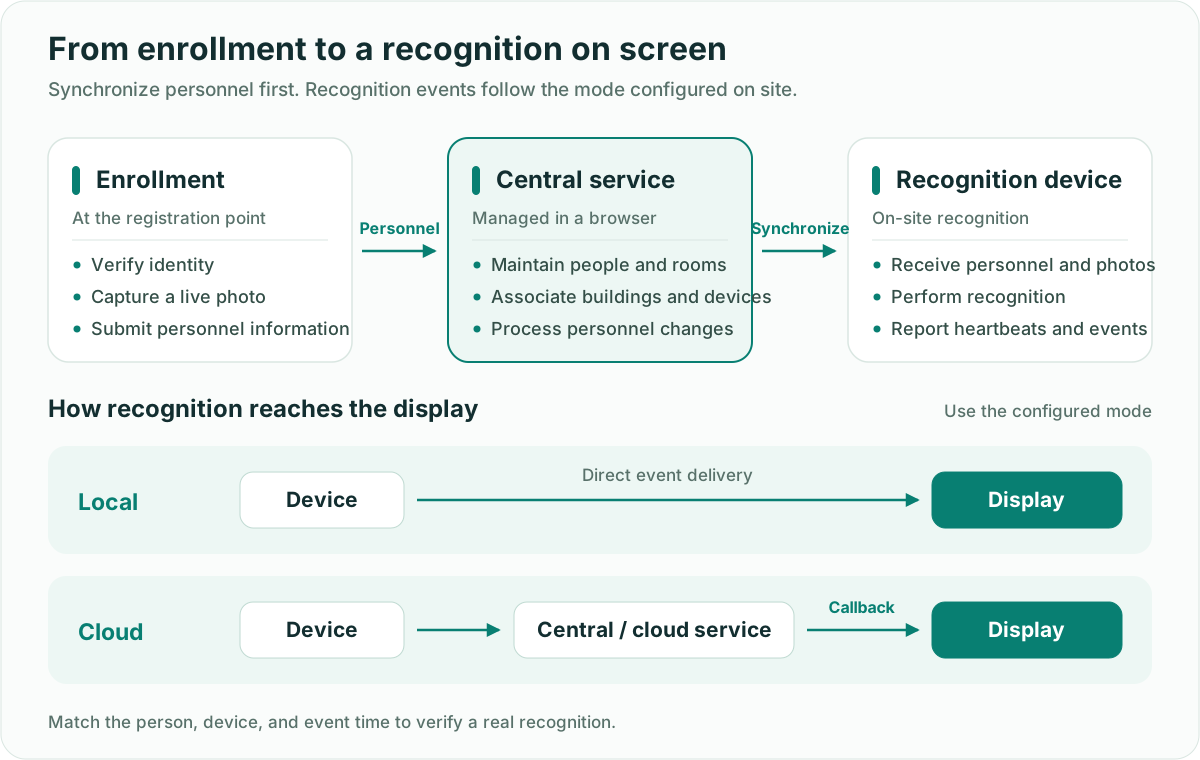
Everyday work uses three relationships:
- Spaces: campus → residential district → building → room. Rooms have layouts and bed counts; residents need the correct accommodation relationship.
- People: college → major → class → student record. The personnel ID connects identity information, photos, and device records.
- Devices: buildings are associated with device groups. The relevant relationships determine which devices receive personnel changes. Check the actual target devices after maintaining a record.
Student records, room assignments, and device records serve separate purposes. After creating a student record, capture a usable photo and verify accommodation and device relationships before testing recognition.
Two display modes
| Mode | Event path to the display | Main check |
|---|---|---|
| Local | Recognition device → display's local device service | The device reports to this display, and its receiving log contains the new event |
| Cloud | Recognition device → central or configured cloud service → display callback service | Upstream receipt succeeds, the callback destination is reachable, and the display receives the event |
The choice follows the installed event path. “Cloud mode” names an event reception mode; the central service may also run on the school's local network. Check the current mode using the display instructions, then perform recognition acceptance.
Terms used in this guide
| Term | Meaning | How to check |
|---|---|---|
| Personnel ID | The identity key connecting central and device records | Use the same ID across systems; names alone may be ambiguous |
| Student record | Basic information such as name, sex, contact details, college, and class | Check Student Info; verify the face photo separately |
| Resident / occupied | A person has a room accommodation relationship | Check the assigned room and its resident list |
| Present / in dormitory | The entry or exit state recorded by the system | Compare the latest record time with the situation on site |
| Online node | A central, display, or enrollment application was recently discovered on the LAN | Check the node type and last broadcast in System Configuration |
| Online device | A recognition device meets the current heartbeat availability criteria | Check device records and recent heartbeats for the active mode |
| Personnel synchronization | A person's addition, update, or removal is transferred to a target device | Check processing results and the person on the device |
| Recognition event | One reported recognition, including time and available person, result, or photo fields | Match device ID, personnel ID, and event time |
| Center connected | The display has recently reached its configured central service | Check display connectivity; test event delivery separately |
Using absence information
Absence and presence information supports accommodation checks. When devices are offline, events are delayed, or entry and exit records are incomplete, verify device status and the person's situation before taking further action.
Scope and integration boundaries
This guide uses campus accommodation to explain records, enrollment, device synchronization, and recognition displays. The same collaboration pattern can support residences, buildings and other managed sites, while identity readers, cameras, and recognition devices must still be tested with the hardware and protocol used on site.
The current school enrollment interface treats the terminal's “Add Visitor” submission as a regular whitelist type. If a site needs separate visitor approval, expiry, or access rules, confirm the actual support in the delivered solution; the button label alone does not establish those capabilities.
Recognition performance depends on the device, photo quality, installation environment, and configuration. Use actual devices and authorized test participants for acceptance. Website demonstrations, placeholder photos, and static screenshots do not establish a working business flow.